
How to Access
Click Settings at the bottom of the sidebar.
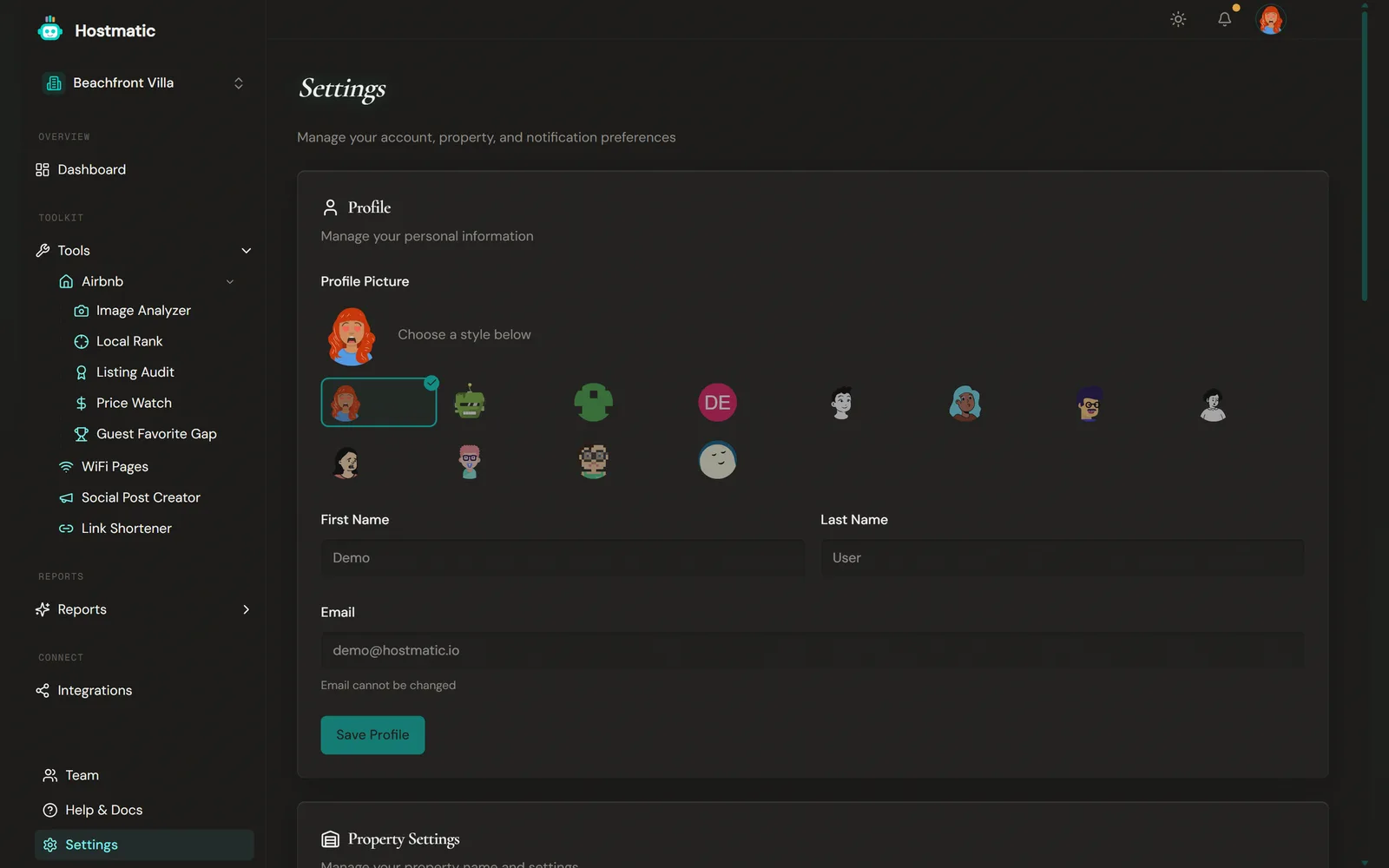
Profile Card
The Profile card (with a user icon) lets you update your personal information.
- Profile Picture — Choose one of 12 avatar styles (Avataaars, Robots, Identicon, Initials, Lorelei, Micah, Mini Avatars, Notionists, Open Peeps, Personas, Pixel Art, Thumbs). Your avatar is generated from your email address — you can't upload a photo. Click a style to select it; it's saved when you click Save Profile.
- First Name — Enter your first name in the text field
- Last Name — Enter your last name in the text field
- Email — Shown but cannot be edited ("Email cannot be changed" appears below).
- Click Save Profile to save your changes
Property Settings Card
(Only shown to the property's owner or admins.)
The Property Settings card (with a warehouse icon) lets you rename your property.
- Enter the property name in the Property Name field (max 100 characters)
- The helper text reads: "This is how your property appears in the property switcher"
- Click Save Property Name
Timezone Card
The Timezone card (with a globe icon) sets your reporting timezone.
- Open the Timezone dropdown ("Select timezone")
- Choose from: Eastern Time (ET), Central Time (CT), Mountain Time (MT), Pacific Time (PT), Alaska Time (AKT), Hawaii Time (HT), London (GMT/BST), Paris (CET/CEST), Berlin (CET/CEST), Tokyo (JST), Shanghai (CST), Dubai (GST), Sydney (AEST/AEDT), Perth (AWST), UTC
- Click Save Timezone
Default Date Range Card
The Default Date Range card (with a bar chart icon) sets the initial view for your analytics.
- Open the Default Range dropdown ("Select default date range")
- Choose: Last 7 days, Last 14 days, Last 30 days, Last 90 days, Last 6 months, or Last year
- The helper text reads: "This will be used as the default when viewing analytics"
- Click Save Date Range
Change Password Card
The Change Password card (with a lock icon) lets you update your password.
- Enter your current password in the Current Password field
- Enter your new password in the New Password field (10–20 characters, with upper and lower case letters, a number, and a special character)
- Re-enter it in the Confirm New Password field
- Click Change Password (shows "Changing..." while processing)
You'll be re-authenticated before the change takes effect.
Airbnb Listings Card
The Airbnb Listings card manages the listings scanned into your account — remove ones you no longer track, or restore an archived one.
Click Manage Listings to open /settings/listings, which has Active and Archived lists. Each listing's menu offers Remove from property or Restore. Archived listings are hidden from selectors, but their history is preserved.
Integrations
To manage all your connected services (Google Analytics, Guesty, OwnerRez, Airbnb, Social Accounts, and others), visit the Integrations page. Click the Go to Integrations button, or click Integrations under Connect in the sidebar. There you can connect new integrations, view account details, and disconnect services you no longer use.
Tip: Disconnecting stops data sync but doesn't delete previously synced data. If a connection stops working (expired token, changed credentials), disconnect and reconnect it.
Credits and Billing
Credit packs and subscriptions are managed outside Settings:
- Credits — Click your credit balance in the top header. Buy credit packs, see your balance broken down into total available, monthly allowance and purchased credits, and check what each tool costs in the Credit Costs by Tool table.
- Pricing — Change your subscription plan. Changes are prorated and take effect immediately. On the Free plan, open it from the Upgrade → card in the sidebar.
- Manage Billing & Subscriptions — On a paid plan, this button on the Pricing page opens the Stripe customer portal, where you can update card details, view invoices, or cancel.
Email Verification
If you sign up with email and password, you must click the link in your verification email before you can sign in. If you try to sign in first, the sign-in screen tells you to verify and offers to resend the link — available for up to 7 days after sign-up.
If you're signed in with an unverified address, a Verify your email notification appears under the bell icon in the header. Click Resend email there.