
What Gets Synced
With Guesty connected, Hostmatic pulls:
- Revenue data — Total revenue, revenue per booking, and ADR (average daily rate)
- Booking details — Check-in/out dates, guest count, booking source
- Platform attribution — Which OTA each booking came from (Airbnb, VRBO, Booking.com, direct)
- Listing details — Listing name, type, and city
- Nights booked — Worked out from your reservations, and used for occupancy and ADR
Why Connect Guesty
A PMS connection is the most data-rich source Hostmatic supports. It unlocks features that aren't possible with calendar-only connections:
| Feature | With Guesty | Without Guesty |
|---|---|---|
| Revenue tracking | Full revenue data | Not available |
| Platform attribution | Automatic | Not available (iCal bookings all count as Airbnb) |
| ADR and booking value | Yes | Not available |
| OTA Performance | Full metrics | Not available |
| Dashboard Revenue tile | Shown, with your revenue | Not shown — the stat strip swaps in another tile |
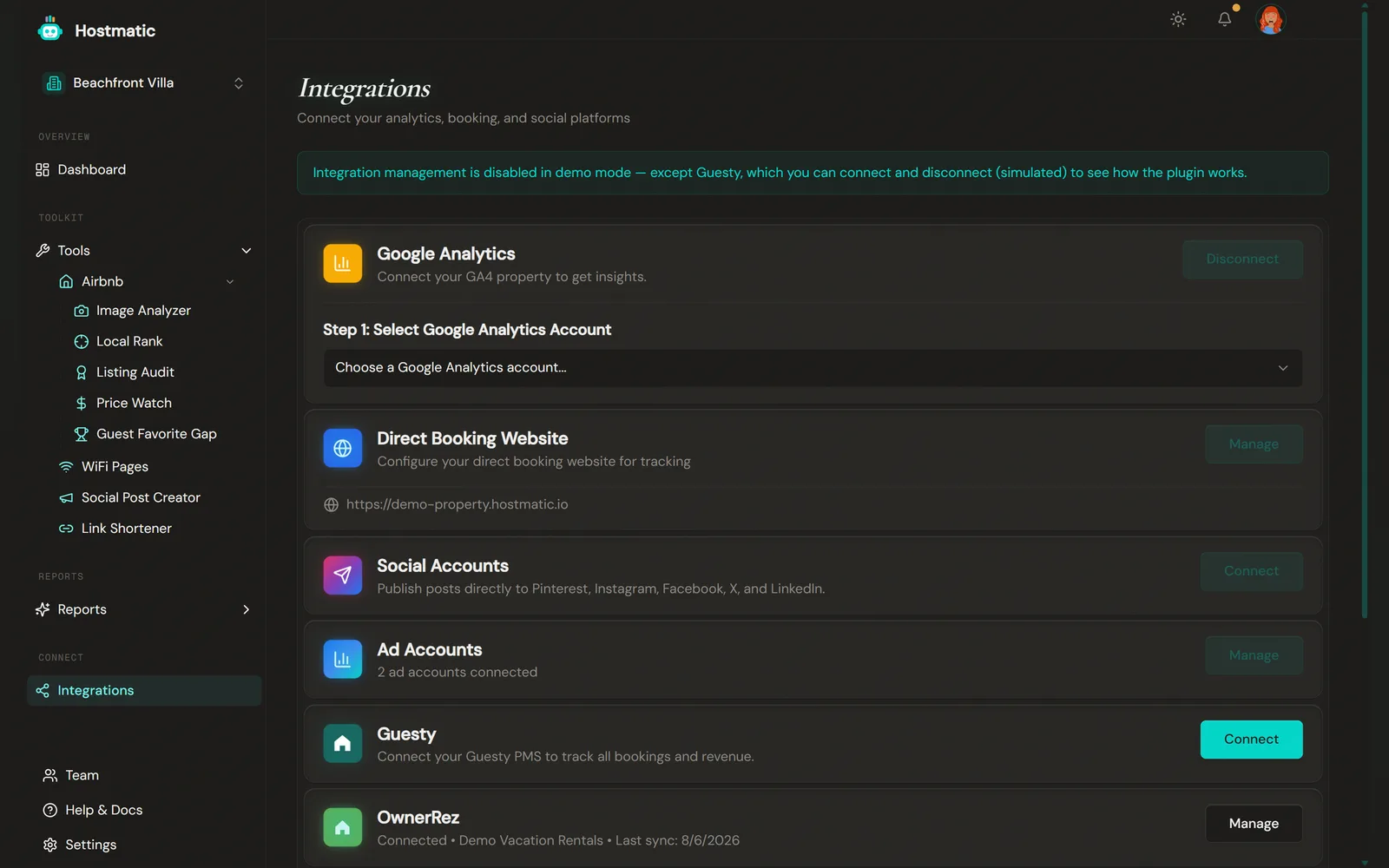
How to Connect
Guesty is not included on the Free plan — Free shows "Upgrade Required." Weekend host and Pro host include it. Only property admins and owners can connect integrations.
- Go to Integrations in the sidebar
- Click Connect next to Guesty — the dialog is titled "Guesty Integration"
- Enter your Guesty Client ID and Client Secret
- Click Connect to Guesty
Getting Your Credentials
Guesty's Open API uses OAuth 2.0 — you'll need a Client ID and Client Secret, not a legacy API key.
- Log in to your Guesty dashboard
- Go to Integrations → API & Webhooks and create a new API key (this is Guesty's Open API application)
- Copy the Client ID and Client Secret it generates — Guesty only shows the secret once
- Paste both into Hostmatic
Tip: Create a dedicated Open API application for Hostmatic rather than reusing an existing one. This makes it easy to manage access and revoke if needed.
Note: Guesty allows only 5 new access tokens per API key every 24 hours, so avoid reconnecting repeatedly. Hostmatic caches your token and reuses it.
Choose Which Listings to Track
If your Guesty account has more listings than the property you're setting up, you don't have to import them all. On your first connect, Hostmatic shows a Properties to track step so you can pick exactly which Guesty listings feed this property's bookings and analytics.
- Only the listings you select are counted in this property's revenue, ADR, and source mix — so a multi-unit or agency account doesn't dilute a single property's numbers.
- You can change the selection any time from Integrations → Guesty → Manage → Properties to track. Click Save & sync tracked listings — Hostmatic syncs right away and drops bookings from listings you deselected.
- Your selection is remembered — if your Guesty token expires and you reconnect, Hostmatic keeps tracking the same listings without asking again.
- Weekend host can track up to 25 Guesty listings per property, Pro host up to 50.
Duplicate Data with iCal Feeds
Guesty syncs bookings from every connected OTA, so if you also have an Airbnb iCal feed connected for the same property, you may see duplicate booking counts. Disconnect the iCal feed once Guesty is providing the same coverage.
Link Listings to Airbnb (optional)
Under Manage → Link your listings, you can match each tracked Guesty listing to its Airbnb equivalent. This lets Hostmatic join your Guesty revenue to the right Airbnb listing for cross-channel analytics. Listings you don't have on Airbnb can be skipped. If listings are still unlinked, the connected view shows a Link now banner.
Data Sync
Your first sync runs when you save the listings to track. Initial sync may take a few minutes depending on the number of listings and bookings.
After that, Hostmatic syncs your Guesty bookings automatically every night, so your reports stay current even if you don't log in. The nightly sync pauses if you haven't signed in to Hostmatic for 6 months, and resumes when you're back.
To pull the latest data right now:
- Integrations → Guesty card → Manage → Sync Now, or
- the Sync button on the Reports Overview page
If the connection drops, the Dashboard shows a red "Guesty disconnected — it stopped collecting data" banner with a Reconnect Guesty button.
The connected view also shows your connected account, total bookings, total revenue, and a Disconnect Guesty button.
Supported Guesty Plans
Hostmatic works with all Guesty plans that provide API access. Check with Guesty if you're unsure whether your plan includes API access.
Troubleshooting
No data after connecting
- Verify your Open API application (Client ID / Client Secret) has read permissions
- Check that your Guesty account has active listings with bookings
- Try disconnecting and reconnecting with a fresh Client ID and Client Secret — remember this uses one of your 5 daily tokens
Stale data
- Guesty syncs automatically every night. For anything newer, click Sync Now in Integrations → Guesty → Manage, or Sync on the Reports Overview page
- If you see the red "Guesty disconnected" banner, click Reconnect Guesty — syncing stops until you do
"Guesty rate limit reached"
- The full message reads "Guesty rate limit reached. Please wait a few minutes and try again." Wait, then sync again.