
Available on all plans. How many insights you see at once scales with your plan: Free 3, Weekend Host 6, Pro Host 10.
How to Access
- In the sidebar, click Reports to expand the menu
- Click AI Insights
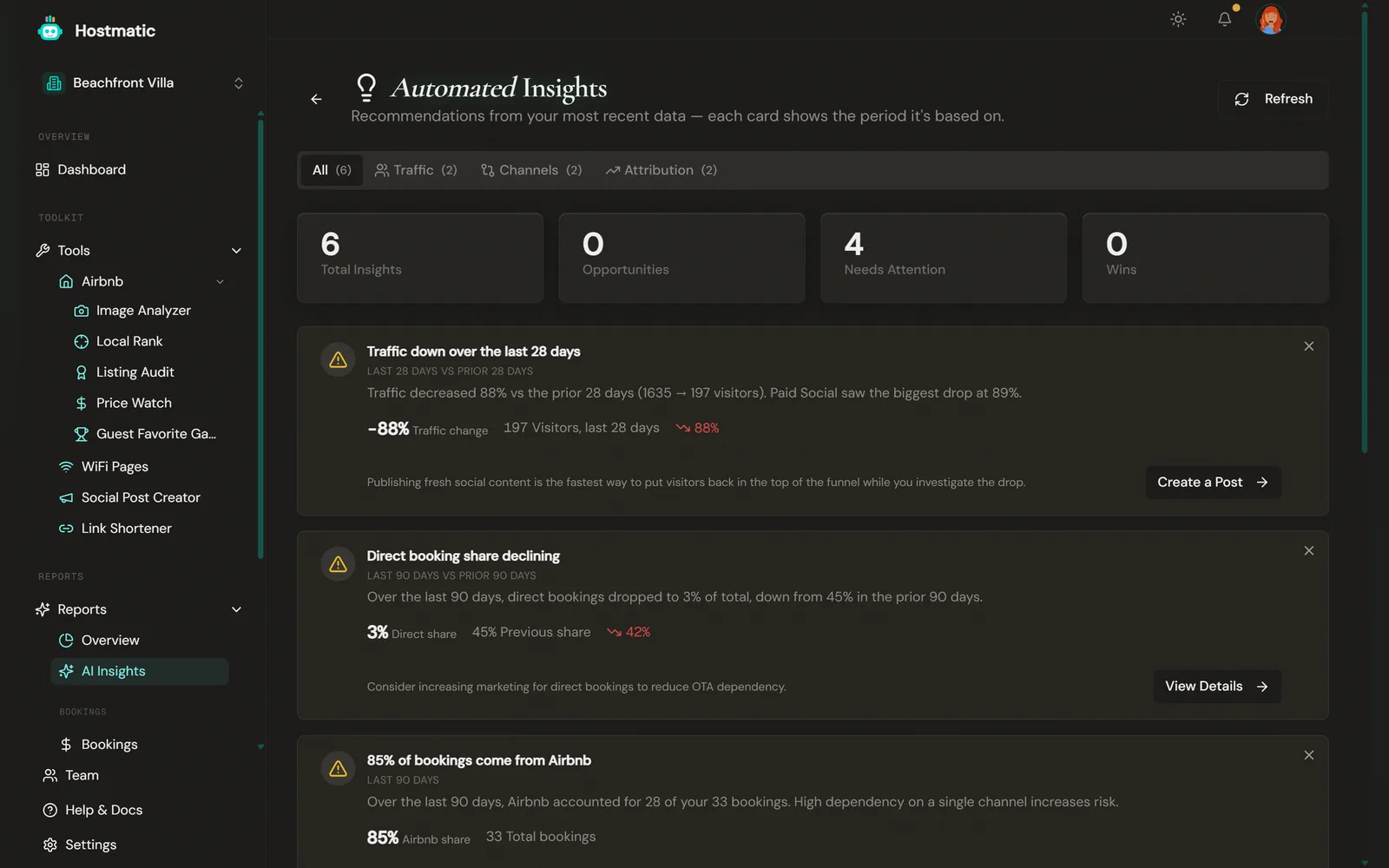
The page opens as Automated Insights.
How It Works
Insights are generated when you open the page, or when you click Refresh, and are then cached — 6 hours for traffic insights, 24 hours for everything else. Hostmatic looks at GA4, your bookings (PMS and Airbnb calendar) and your short-link clicks, and groups what it finds into these categories. A tab only appears when that category has at least one insight:
- Traffic — visitor volume, top and fastest-growing sources, traffic up or down vs the prior 28 days
- Conversions — GA4 conversions surging, or a source converting below average
- Channels — your direct vs OTA booking mix: commission saved, direct share growing or shrinking, top OTA, top revenue source, channel concentration
- Attribution — campaigns and links: top or underperforming campaign, QR code performance, clicks up but bookings flat
For seasonal patterns, use the Seasonal Patterns report instead — AI Insights doesn't cover them.
Where Insights Appear
Insights live on the AI Insights page (Reports → AI Insights). When new ones are ready, you get a notification — "N new insight(s) ready" — with a View insights link.
The page shows four summary tiles (Total Insights, Opportunities, Needs Attention, Wins), an All tab, and one tab per category with a count. Insights are per property and follow the property switcher.
- Refresh (top right) regenerates insights from the latest data.
- X on a card dismisses it. It stays hidden until its cached data expires (6 hours for traffic, 24 hours for the rest), then it can return with newer numbers.
Reading an Insight
Each insight includes:
- Title — A brief headline summarizing the observation
- Description — What was detected and why it matters
- Data context — The period (for example "Last 28 days" or "Last 28 days vs prior 28 days"), a primary metric, an optional secondary metric, and a % change
- Suggested action — A recommendation, usually with a button through to the relevant page
Data Requirements
The page ignores the Reports date-range picker. Each insight type uses a fixed window: 28 days for traffic, conversion and campaign insights, and 90 days for booking-mix insights. Some insights, like your visitor count or top revenue source, appear as soon as you have data. Insights that compare periods need a full prior window and a change of at least 10%.
If nothing qualifies, you'll see No Insights Available, which either lists what data was found (GA4 visitors, bookings, link clicks, social posts) or asks you to connect integrations, with a Go to Integrations button.
Tip: The more data sources you connect (Google Analytics, your PMS, Airbnb calendars, short links), the more insights Hostmatic can generate. Connect them from the Integrations page in the sidebar.