
How to Access
In the sidebar under Tools → Airbnb, click Image Analyzer. (You can also open the Airbnb tools hub and pick Listing Image Analyzer.)
The Two Scan Types
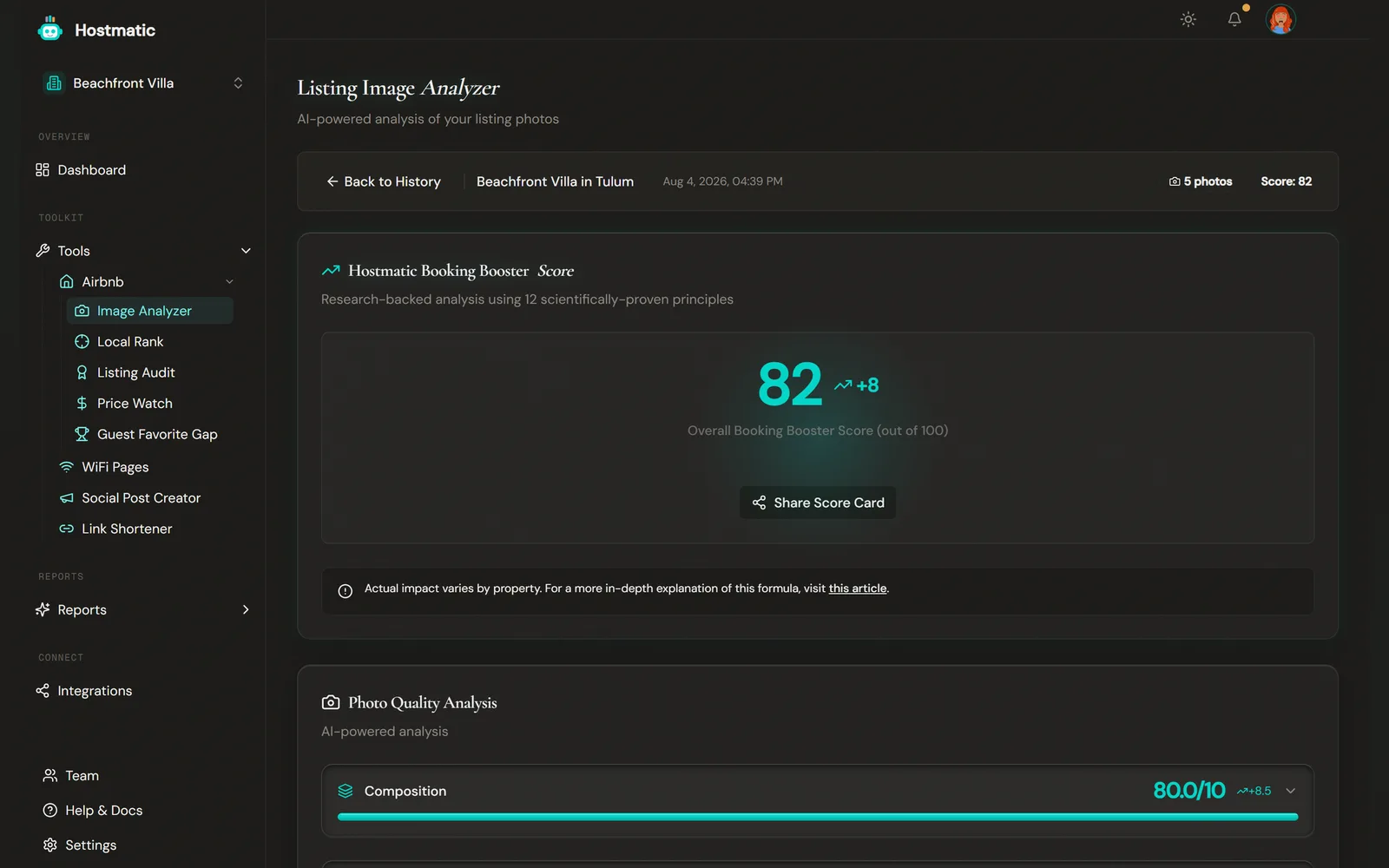
Hero Scan
Scores the first 5, 8, or 10 photos in your listing order — these are the photos that decide whether a guest clicks on your listing in the first place. If the listing has fewer photos than the tier you pick, you're still charged the full tier price.
You get:
- Booking Booster Score (0–100) — an aggregate score across the hero set
- Rating label — Excellent (85+), Good (70–84), Average (50–69), Below Average (under 50)
- Section breakdowns — Composition, Color, and Figure-Ground, each with its individual metrics scored 1–10
- Recommendations for the hero set, plus per-photo cards (quality, appeal, lighting, staging) for the first 6 photos
- Estimated Annual Revenue Impact and a By Component split of the score
- Share Score Card — copies a public link to your Hero Scan result
Hero Scan scores are comparable run-to-run, so they're the right scan type for tracking progress over time. If your hero set scores 62 today and 78 next month after you reshot the cover, that gain is real.
Library Audit
Audits every photo in the listing individually and returns a ranked list with replacement suggestions. You can sort it weakest first, strongest first, or in listing order.
There's no Booking Booster Score. Instead you get a summary (photos audited, weak photos scoring under 6/10, average score, top photo), a Recommended photo order card when reordering would lift your hero score, and a clear "fix these first" queue.
Use Library Audit when you want a comprehensive cleanup pass on the whole gallery.
Credits
| Operation | Credits |
|---|---|
| Hero Scan — 5 photos | 15 |
| Hero Scan — 8 photos | 18 |
| Hero Scan — 10 photos | 22 |
| Hero Scan reanalysis (same listing) | 8 / 10 / 12 |
| Library Audit | 8 + ceil(photos × 0.7) |
| Library Audit reanalysis | 50% off, rounded up |
Reanalysis means scanning a listing you've scanned before. There's no time limit — if the listing has any earlier image analysis, the discount is applied when you're charged. The buttons still show the full price, so if your balance sits between the discounted and the full price, the run is blocked even though you'd have been charged less.
On the Free plan, your first 5-photo Hero Scan of each listing is free. Library Audit is never free.
If some photos fail to analyze, you're refunded for those photos automatically and a Try the missing N photos again link re-runs only those photos at no charge.
Viewers on a shared property and demo accounts can't run scans.
Step-by-Step: Run a Scan
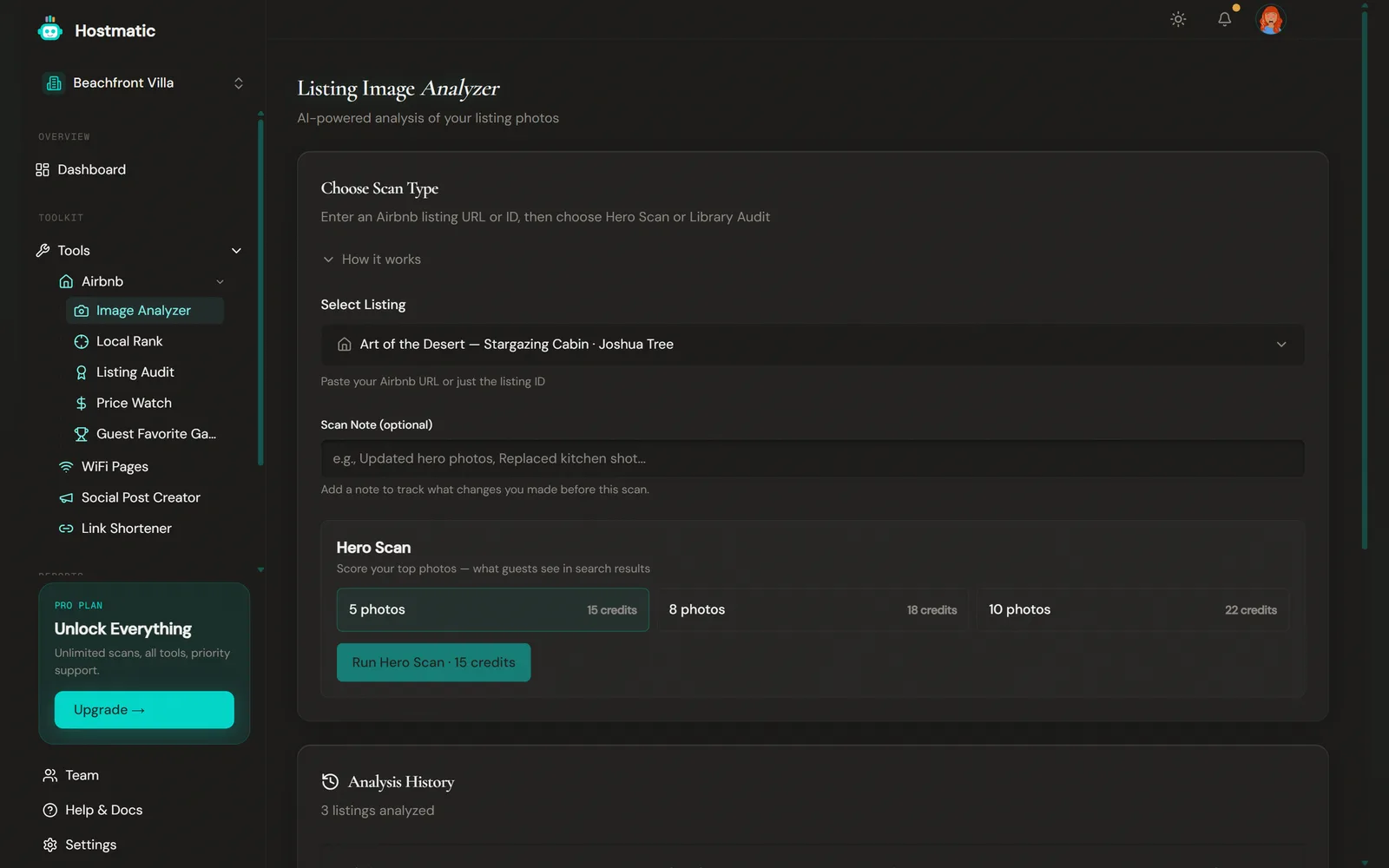
1. Select a Listing
Pick a listing from the Select Listing dropdown. It lists every Airbnb listing you've saved or scanned before, most recently scanned first, with the top one selected for you. To add another, click Add a new listing... and enter the Airbnb Listing ID or URL. If you have no saved listings yet, the ID/URL field shows straight away. Manage listings opens the full list.
2. Choose Scan Type
The card is titled Choose Scan Type with two separate buttons:
- Run Hero Scan · N credits
- Audit All {N} Photos · N credits — this button appears once Hostmatic knows the listing's photo count, so run a Hero Scan on the listing first
For Hero Scan, pick how many photos: 5, 8, or 10. Each tile shows its credit cost; 5 is the default. You can also add a Scan Note (optional) before running.
3. Run
Click the button for your chosen scan type. The loading card shows two stages: Fetching listing data... then Analyzing photos with AI.... Library Audit takes longer with more photos.
4. Review the Results
For Hero Scan, you land on a results page with your Booking Booster Score, the section breakdowns, and the per-photo cards. For Library Audit, you land on a ranked list with weakest photos at the top and replacement guidance for each.
History, Notes, and Compare
Every scan is saved. The Analysis History table shows one row per listing with its latest scan. Each row has:
- Listing name (the cleaned Airbnb title) and listing ID
- Scan type and date — a badge reading Hero N or Library (N)
- Score (Hero Scan) or number of weak photos (Library Audit)
- Editable scan note — click the pencil icon. Useful for tagging context like "after pro photographer reshoot".
- History to expand every run for that listing
- Rescan — defaults to the prior run's scan type and photo count, with a two-click confirm
Expand a listing's history to see every run with its date, type, score, photo count, and note. Each run has View to reopen it, Compare, and a trash icon to delete it. Notes are editable per run here too.
Compare puts the latest run against one earlier Hero Scan (Latest vs {date}) and shows the change in Booking Booster, Color, Composition, and Figure-Ground with a small trend line for each. Compare is Hero-vs-Hero only, and only available when the latest run is a Hero Scan.
The date-range filter defaults to the last 90 days and is capped by plan: Free 90 days, Weekend 180 days, Pro 1 year. Presets are 7d, 30d, 90d, 180d, and 1y, plus a custom From/To; presets above your cap are disabled.
Editable Listing Names
Each listing has a custom name you can set via the pencil icon in the results header (it appears on hover). The custom name shows in the Image Analyzer results header, Price Watch, and your dashboard's recent activity. Airbnb's SEO suffixes (like " - Houses for Rent in Centro, Yucatán, Mexico - Airbnb") are stripped from the display name even if you don't set a custom one.
How to Use the Results
- Start with the hero image. Photo #1 has the biggest impact on click-through in Airbnb search.
- Fix the lowest-scored photos first. Library Audit ranks them in order — work top to bottom.
- Re-shoot, replace on Airbnb, rescan. Use the inline Rescan button on the history row. With reanalysis pricing it's cheap to track progress.
- Use scan notes to capture the "why." Three months from now, "reshot living room" or "added pool wide-shot" tells a story; an untagged score history is just numbers.
Failure Guard
If zero photos analyze successfully (e.g. they all failed to download from Airbnb), the run is rejected with a clear error — "Image analysis failed for every photo … You were not charged" — and your credits are refunded automatically. No misleading zero-score run is persisted, and a free first-touch scan is restored. You can delete any run from the listing's History drawer with the trash icon.
Common Questions
- The tool can't find my listing. — Paste the Airbnb URL (e.g.
airbnb.com/rooms/12345678) or just the listing ID. Photos are pulled directly from Airbnb. - My score dropped after I changed photos. — A few possibilities: the new photo set has different composition issues, the order on Airbnb shifted (so different photos are in the "hero" 5/8/10), or one heavily-weighted photo got worse. Use the Compare panel to spot the difference.
- Why can't I compare a Hero Scan to a Library Audit? — They score different things and use different methodologies. Comparing them would be misleading.
- Can I share my results? — Yes. Hero Scan results have a Share Score Card button that copies a public link to your clipboard.