
How to Access
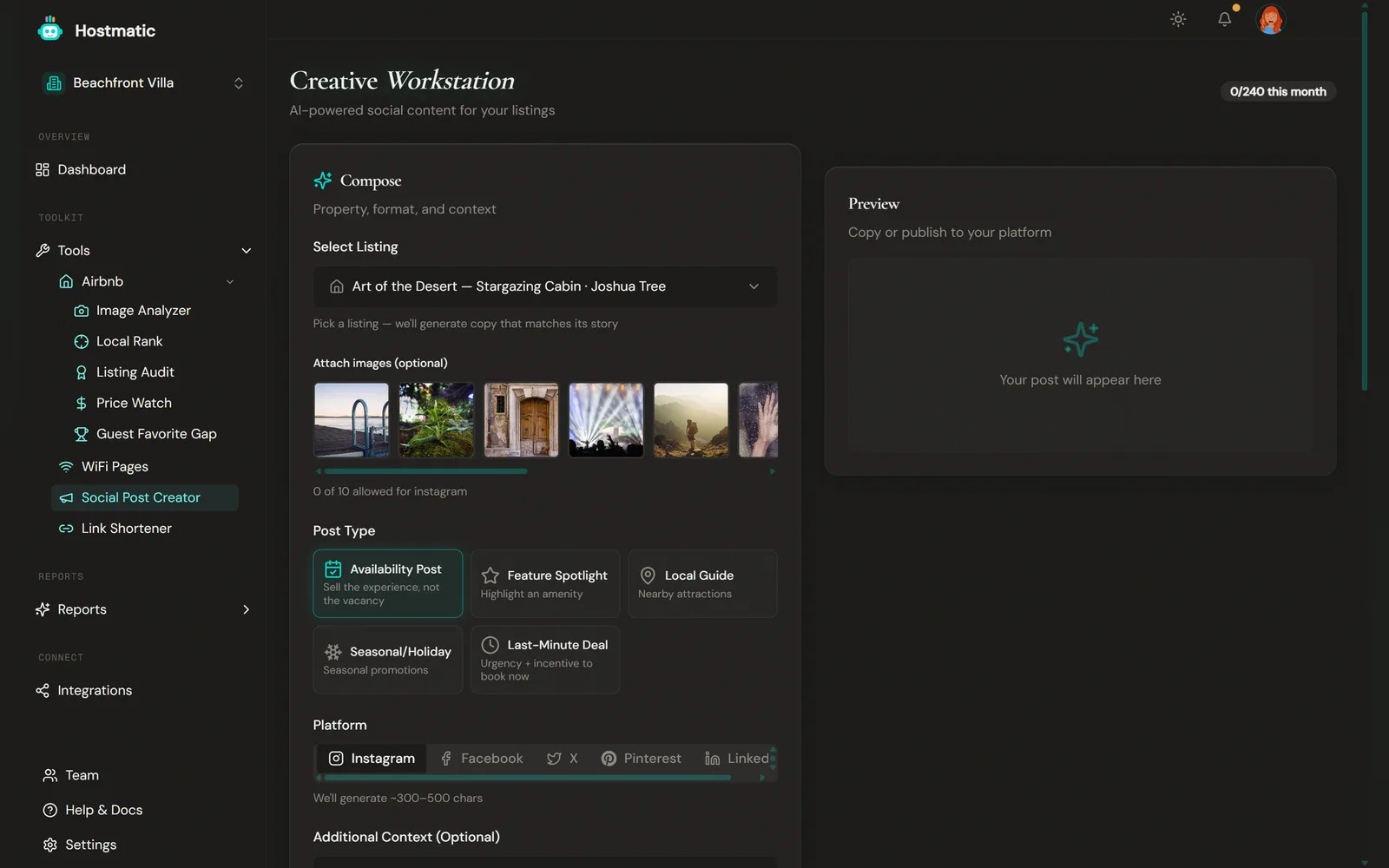
In the sidebar, under Tools, click Social Post Creator. Route: /tools/social-post-generator.
Your monthly post-generation usage is shown as a badge in the top-right (e.g. "3/60 this month", or Unlimited when you have no cap). It turns red once you hit the limit, and Generate Post is disabled until the month rolls over. Monthly generation allowances are 12 on Free, 60 on Weekend Host, and 240 on Pro Host.
On a shared property, only editors and above can generate or publish.
Step-by-Step: Generate a Post
1. Select a Listing
In Select Listing, choose the Airbnb listing you want to promote.
To post about a listing you haven't saved yet, click Add a new listing… and enter its Airbnb Listing ID or URL.
Once a listing is selected you can attach its photos: up to 10 for Instagram, 4 for X, 1 for the other platforms.
2. Choose a Post Type
Pick one of five angles:
- Availability Post — Sell the experience, not the vacancy.
- Feature Spotlight — Highlight an amenity. A Feature to Highlight field appears when selected, with a Random toggle (on by default) that lets the AI pick a standout feature from your listing.
- Local Guide — Nearby attractions. Requires Weekend Host or higher.
- Seasonal/Holiday — Seasonal promotions.
- Last-Minute Deal — Urgency + incentive to book now.
3. Pick a Platform
Five tabs cover the supported networks. Each has its own character cap and recommended length:
| Platform | Hard cap | Recommended length |
|---|---|---|
| 2,200 | 300–500 chars | |
| 5,000 | 250–400 chars | |
| X (Twitter) | 280 | 200–270 chars |
| 500 | 300–450 chars (search-keyword style) | |
| 3,000 | 500–800 chars |
The character counter under the preview turns red if a generated post exceeds the cap — the generator retries once, then trims at the last sentence boundary, so over-cap copy almost never reaches you.
4. Hashtags
Hashtag count is platform-driven, not plan-driven:
- Instagram — 12
- Facebook — 2
- X — 2
- Pinterest — 4
- LinkedIn — 3
5. Add Context (Optional)
Use the Additional Context (Optional) box to tell the AI anything specific — "mention the new rooftop deck", "focus on family-friendly activities", or paste an event the guest could attend. On Weekend Host and Pro, tick Search for local events to include to have nearby events found for you.
6. Generate
Click Generate Post. The AI writes the copy and hashtags. On Weekend Host and Pro, tick Auto-create tracking link (and optionally set a Campaign name, e.g. availability-cabin-mar2026) to add a tracked hmatic.io link tagged with the platform as the UTM source. The panel shows how many links you have left against your plan's link limit; at the cap, the post is generated with the plain booking URL instead.
Publishing Directly
Requires Weekend Host or higher.
After generating, click Publish to Social Media to push the post straight to your connected accounts. The dialog will:
- Pre-select your accounts on the platform you generated for, marked Suggested, and warn if you pick a different platform.
- Warn if the platform requires media (Instagram and Pinterest need an image — Publish stays disabled until you pick one).
- Block any account where the post, link, and hashtags together would exceed that platform's cap, marked Too long.
- Show your monthly publishes used (e.g. Posts: 4/30 this month), or, once you're over, 1 credit per post with your balance.
If you have no accounts connected yet, the dialog lets you connect one, with the matching platform highlighted.
| Plan | Connected accounts | Monthly publishes |
|---|---|---|
| Free | 0 (generation only) | — |
| Weekend Host | 2 | 30 |
| Pro Host | 5 | 120 |
Once you exceed your monthly publish allowance, each additional publish costs 1 credit. If the post fails on every platform, the credit is refunded.
Inactivity Policy
Connected accounts auto-disconnect after 90 days of no publishing. This keeps your seat count lean (we're billed per connected account by our publishing provider). Just publish once before then and the account stays active. Reconnecting an account doesn't affect your post history.
Your Generated Post
The Preview column on the right displays:
- Post text — the full generated content
- Character counter — green ✓ when under the cap, red when over
- Hashtags — listed below the post
- Tracking Link (if you turned on Auto-create tracking link) or Listing Link — the link added to the copy
- Copy Post / Copy with Hashtags buttons, plus a regenerate button
Post History
Post History at the bottom shows your 10 most recent posts, with platform, title, post type, and date. Hover a row to Copy it or, if it isn't published yet, Publish it. Click a row to open the full preview. On plans with post analytics, published posts also show their engagement and booking stats here.
Tip: Rotate post types so your social feeds stay varied. Mixing Availability with Local Guide and Feature Spotlight posts keeps your audience engaged without sounding like a vacancy notice every week.